Getting Started with RoostHive
RoostHive is a simple way for landlords to manage rental properties in one place — your units, your tenants, the rent you collect, repairs, and expenses. This page gives you the lay of the land in about five minutes.
What RoostHive does
Think of RoostHive as the single home for everything about your rentals. Instead of juggling spreadsheets, text messages, and shoeboxes of receipts, you keep it all in one organized place that you can open from any device. At a high level, RoostHive helps you:
- Keep a record of every property — address, rent, lease dates, occupancy status, photos, and notes.
- Track who's renting — your tenants and which unit they're in.
- Collect and track rent — log charges, mark them paid, and send tenants a link to pay by card or bank transfer.
- Stay on top of repairs — log maintenance requests and follow them from open to done.
- Record expenses — so you know what each property really costs and tax time is painless.
- See the big picture — a Dashboard that shows occupancy, money in, and what needs your attention.
Signing in
- Go to the app Open roosthive.com in any modern browser (Chrome, Safari, Edge, or Firefox) on your computer, tablet, or phone.
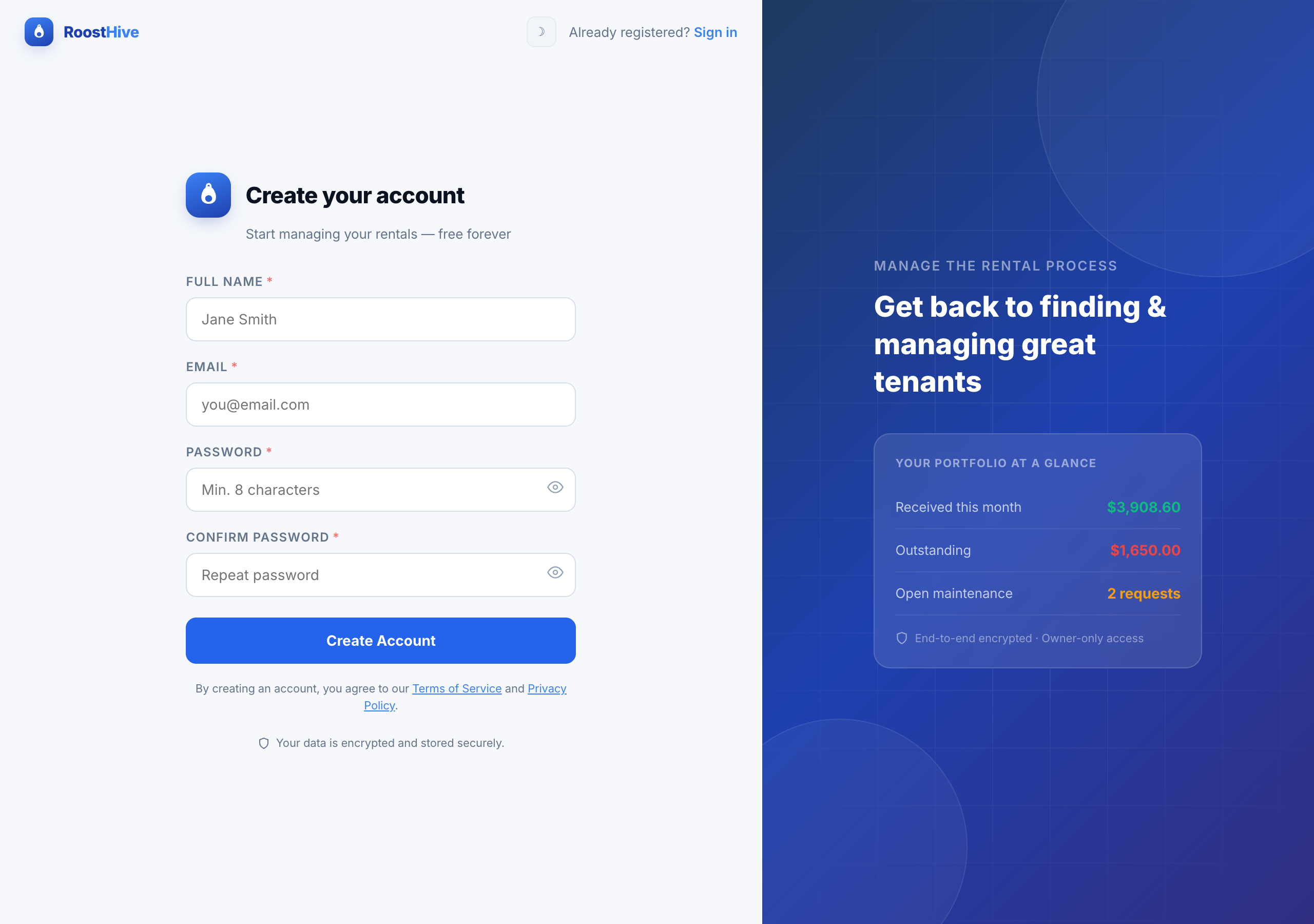
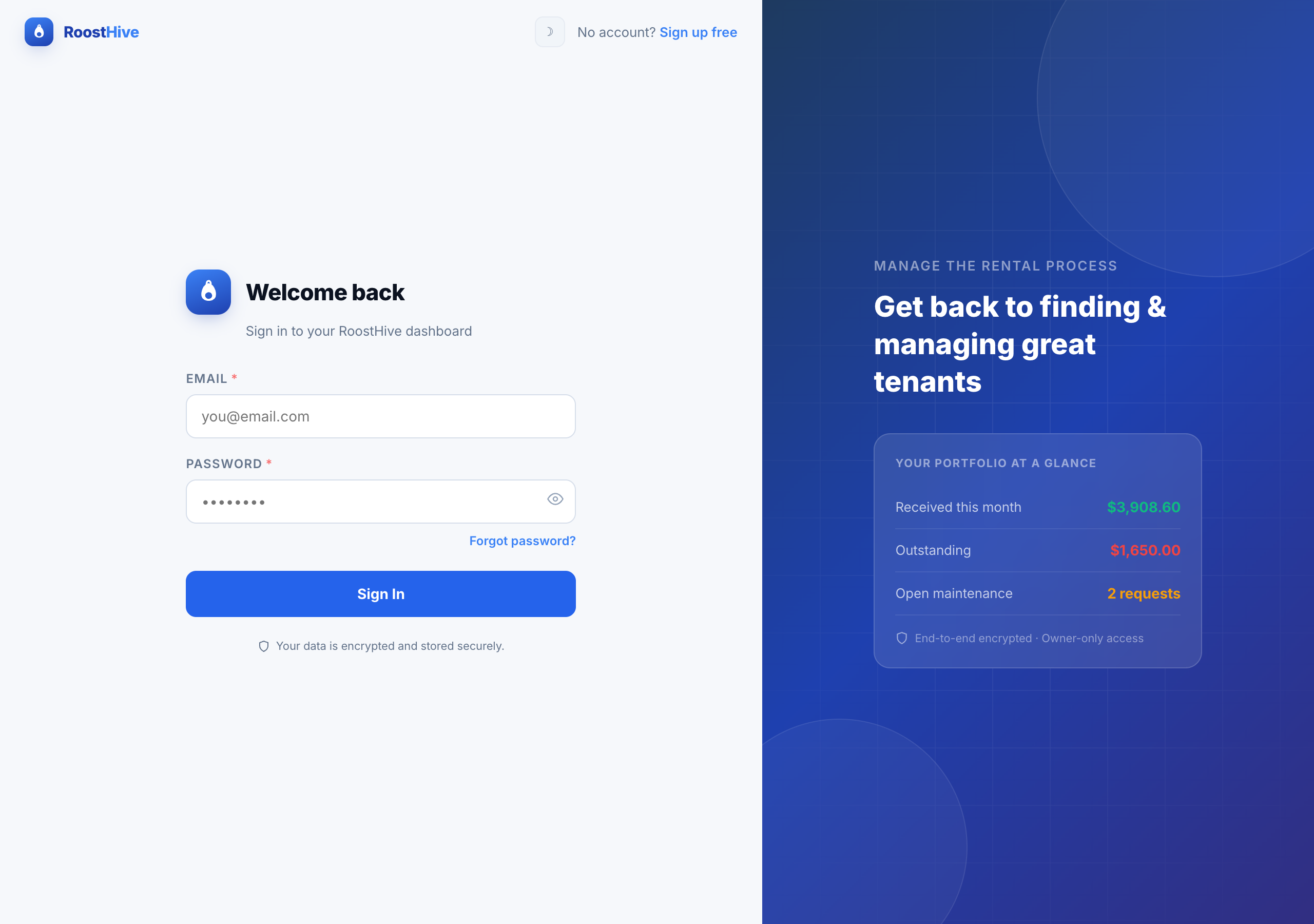
- Create your account or log in First-time visitors sign up with an email and password. If you already have an account, just log in.
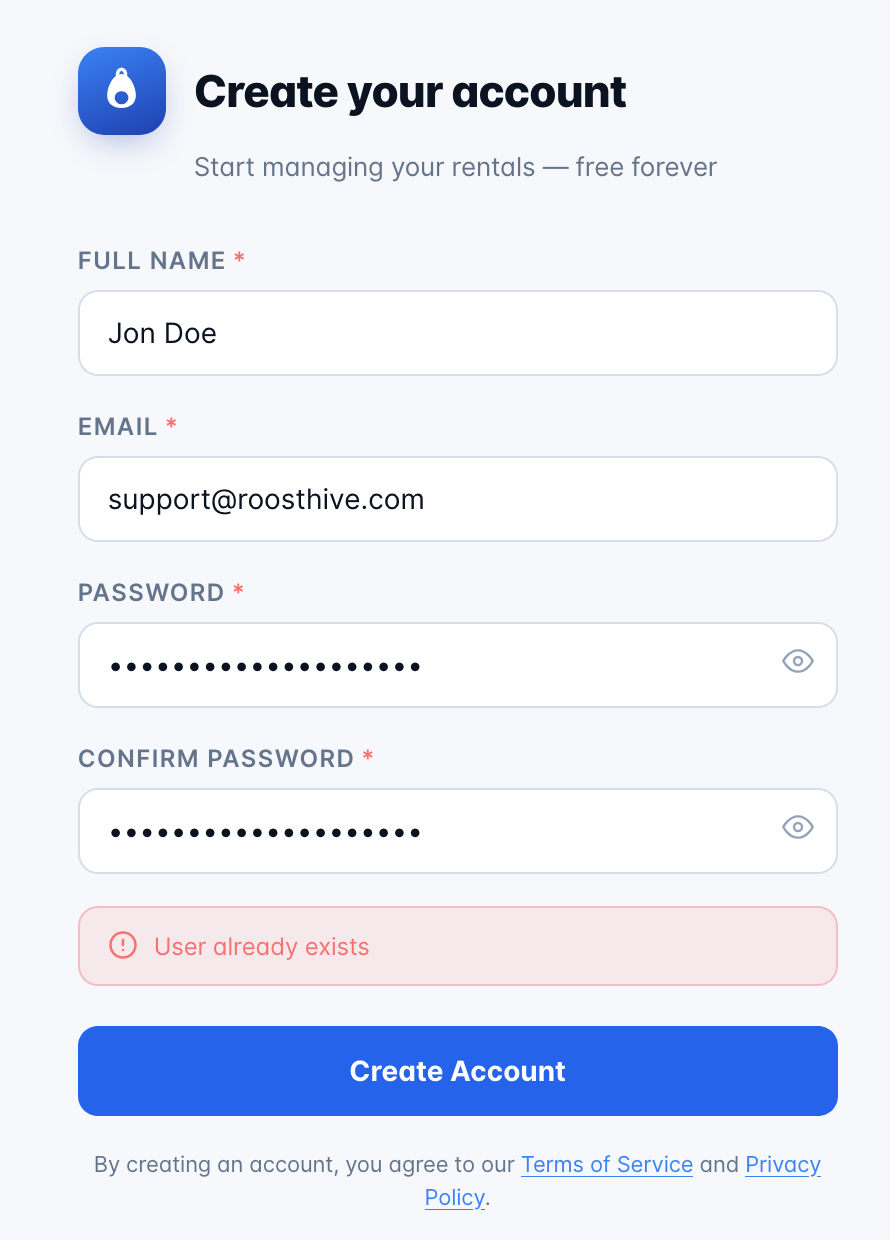
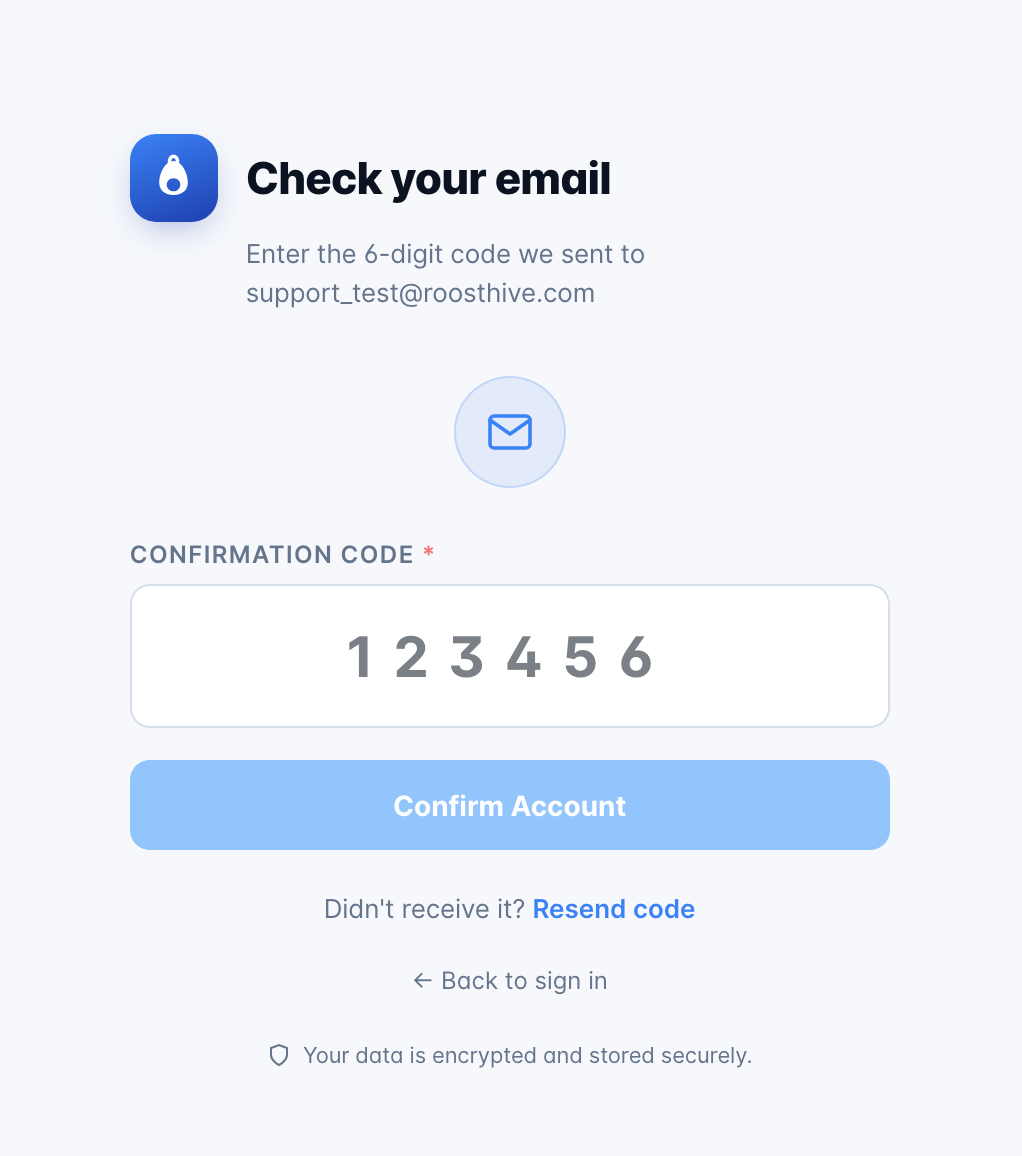
- Confirm your email We email you a 6-digit verification code. Enter it on the website to activate your account — this keeps it secure and proves the address is yours.
- You're in You'll land on the Dashboard. It'll look empty at first — that's normal. The next step is adding a property.
The verification email
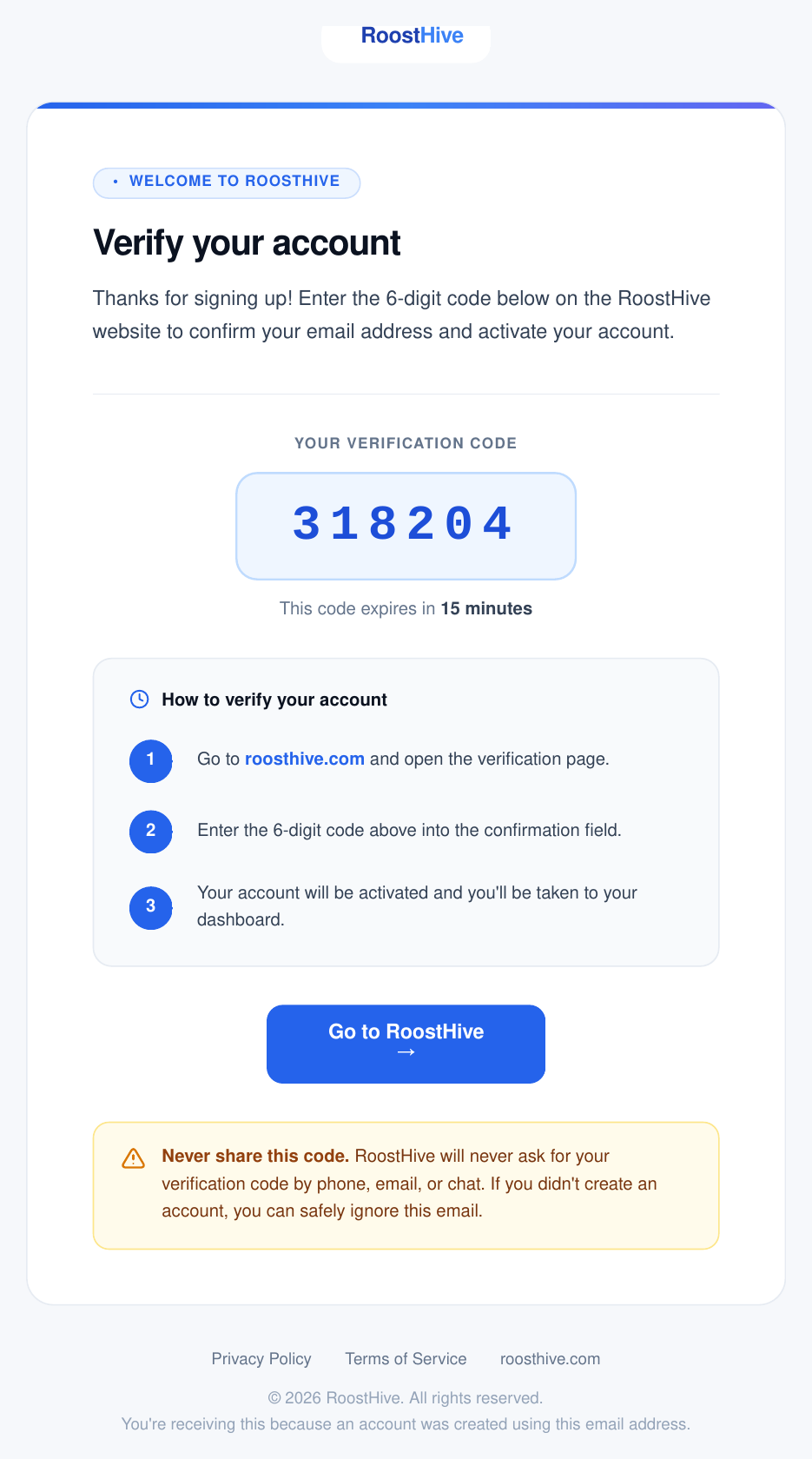
Right after you sign up, RoostHive sends an email with the subject "Verify your RoostHive account." Inside is a single 6-digit code — type it into the code box on the website to finish signing up. The code expires in 15 minutes; if it lapses or never arrives, use Resend code on the verification screen (and check your spam folder).
Forgot your password?
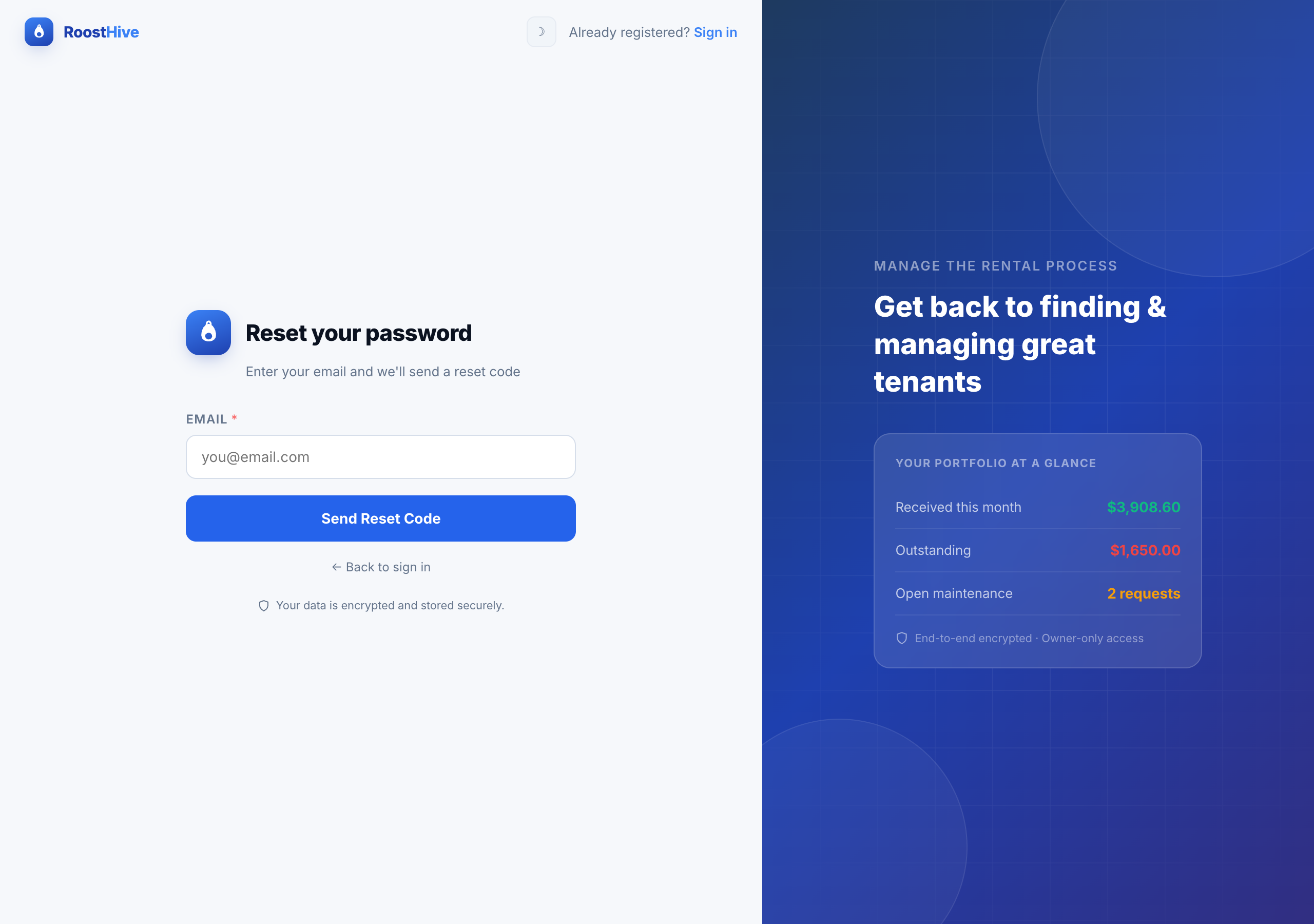
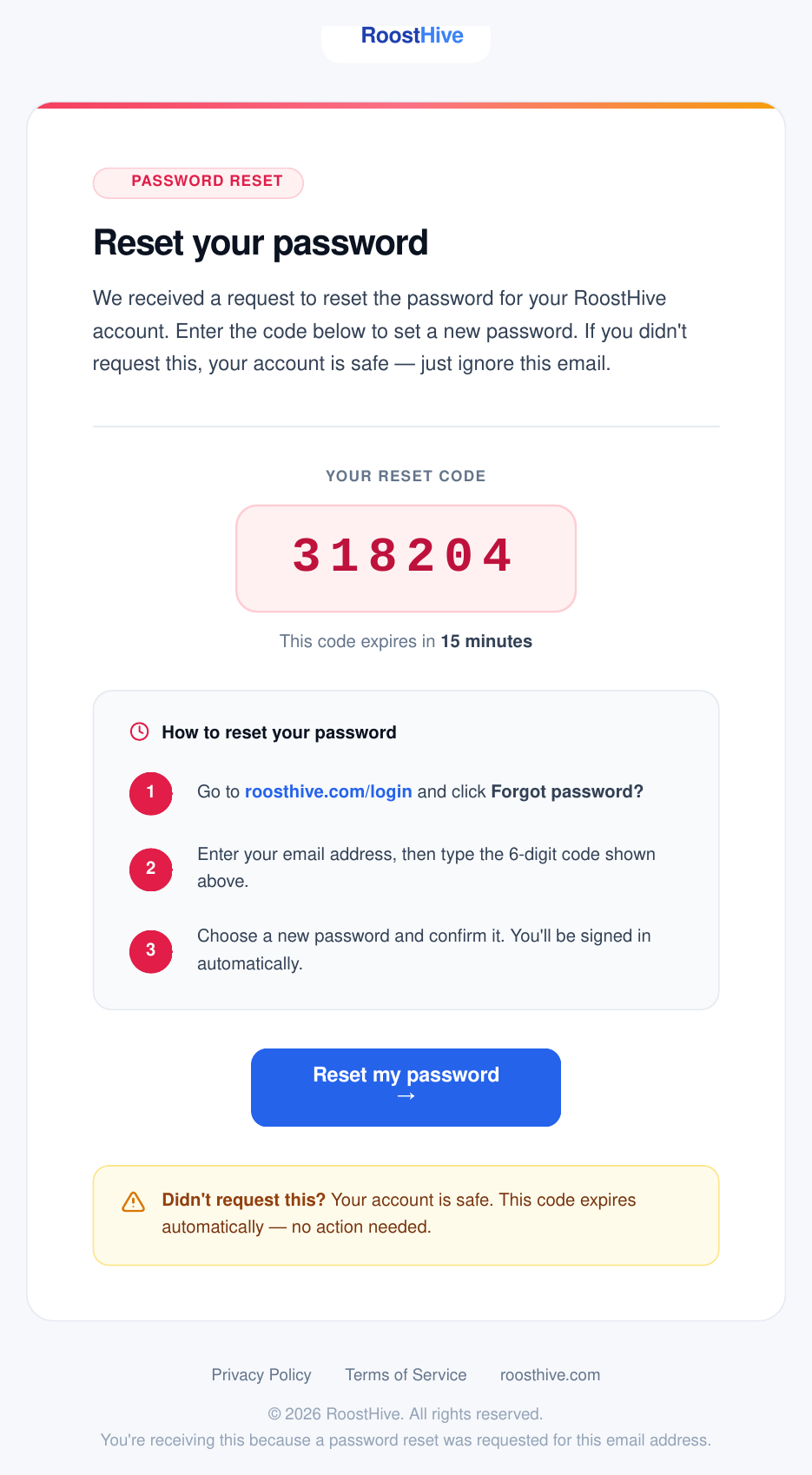
On the login screen, choose Forgot password and enter your email. RoostHive sends a "Reset your RoostHive password" email with a reset code; enter that code along with your new password to get back in. Like the verification code, it's time-limited, so use it promptly.
A quick tour of the app
Once you're signed in, you'll see a navigation menu with the main areas. Here's what each one is for:
| Area | What it's for |
|---|---|
| Dashboard | Your home base — a snapshot of your whole portfolio. |
| Properties | Add and manage each rental unit, set rent, add tenants and photos. |
| Payments | Track rent and other charges, mark them paid, send payment links. |
| Maintenance | Log and track repair requests. |
| Expenses | Record what you spend, by property and category. |
| Settings | Your plan, billing, payment collection setup, and profile. |
Your first 10 minutes
The fastest way to feel at home is to set up one real property. Here's the recommended order:
- Add a property Go to Properties and add your first unit with its address and rent.
- Add the tenant and lease dates Mark it occupied and record who's renting and when the lease ends.
- Add a photo Upload a picture of the property so it's easy to recognize at a glance.
- Log this month's rent Head to Payments and add the rent charge so you can track when it's paid.
- Check the Dashboard Go back to the Dashboard and watch your numbers come to life.
Is my information safe? A plain-English primer
Short answer: yes. You don't need to back anything up yourself — RoostHive does it for you, automatically, the moment you save. Here's what that means in everyday terms.
Everything saves to the cloud automatically. When you add a property, record a payment, or upload a photo, it's instantly stored on secure servers run on Amazon Web Services (AWS) — the same infrastructure that powers Netflix, Airbnb, and large banks. There's no "save to my computer" step and nothing to lose if your phone breaks or your laptop dies. Log in from any device and your data is right there.
Your files are copied many times over. Photos and documents you upload aren't kept in a single place. The moment you upload, the system stores multiple copies across several physically separate data centers. If one machine — or even an entire building — fails, your file is still safe in the others.
How safe is "safe"? The "nines." The storage RoostHive uses is engineered for 99.999999999% durability — that's eleven nines. In plain terms: if you stored 10 million files, you'd expect to lose one of them roughly once every 10,000 years. Practically speaking, your uploads aren't going anywhere.
It's locked and encrypted. Your data is encrypted while it travels to the servers and while it sits there at rest, so it's scrambled and unreadable to anyone who isn't you. Access is tied to your login, so other landlords using RoostHive can never see your properties, tenants, or numbers.