Maintenance & Repairs
The Maintenance page keeps every repair in one tidy list so nothing gets forgotten. Log an issue the moment you hear about it, set how urgent it is, and follow it through to completion — with the latest open items always visible on your Dashboard.
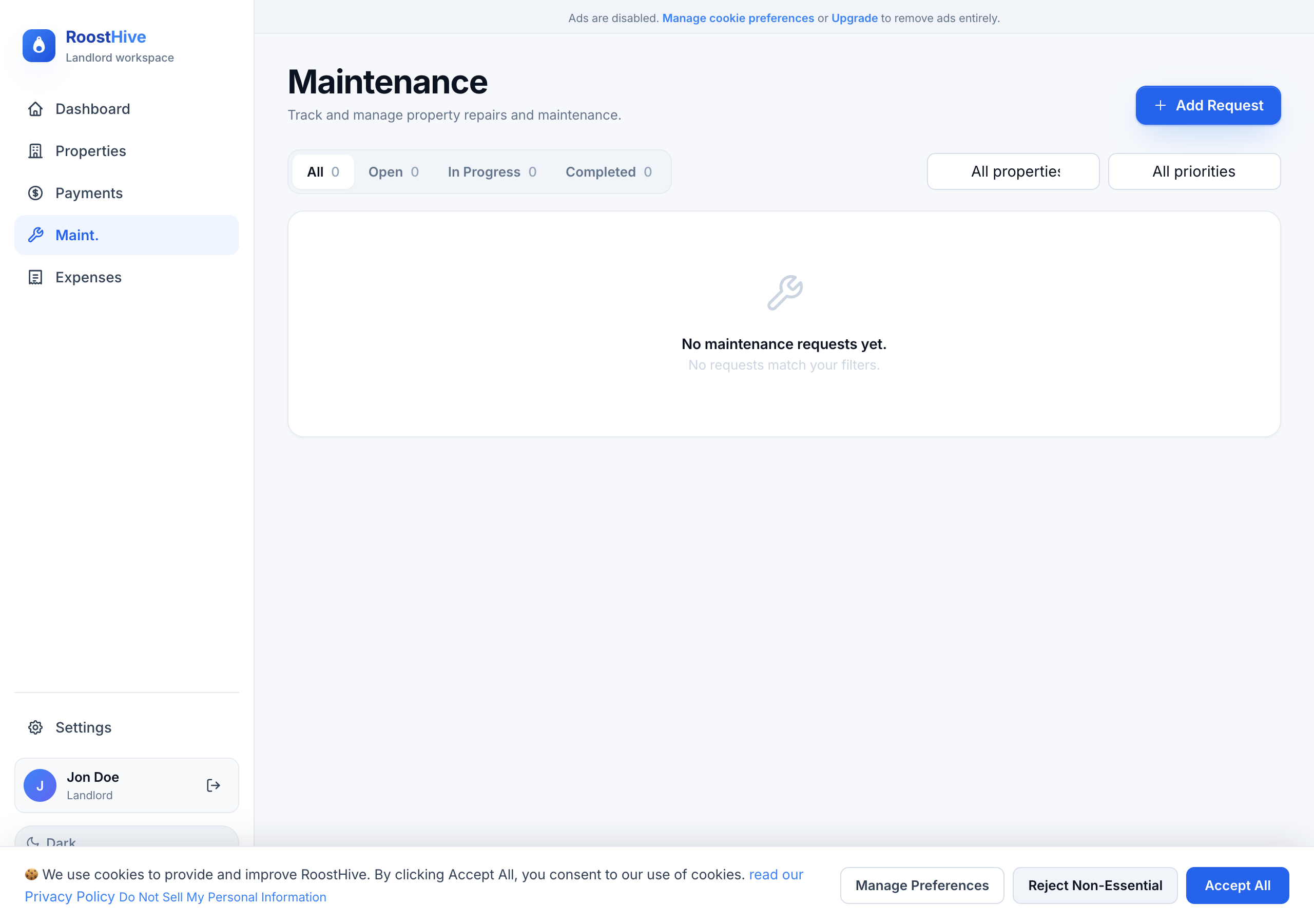
Logging a request
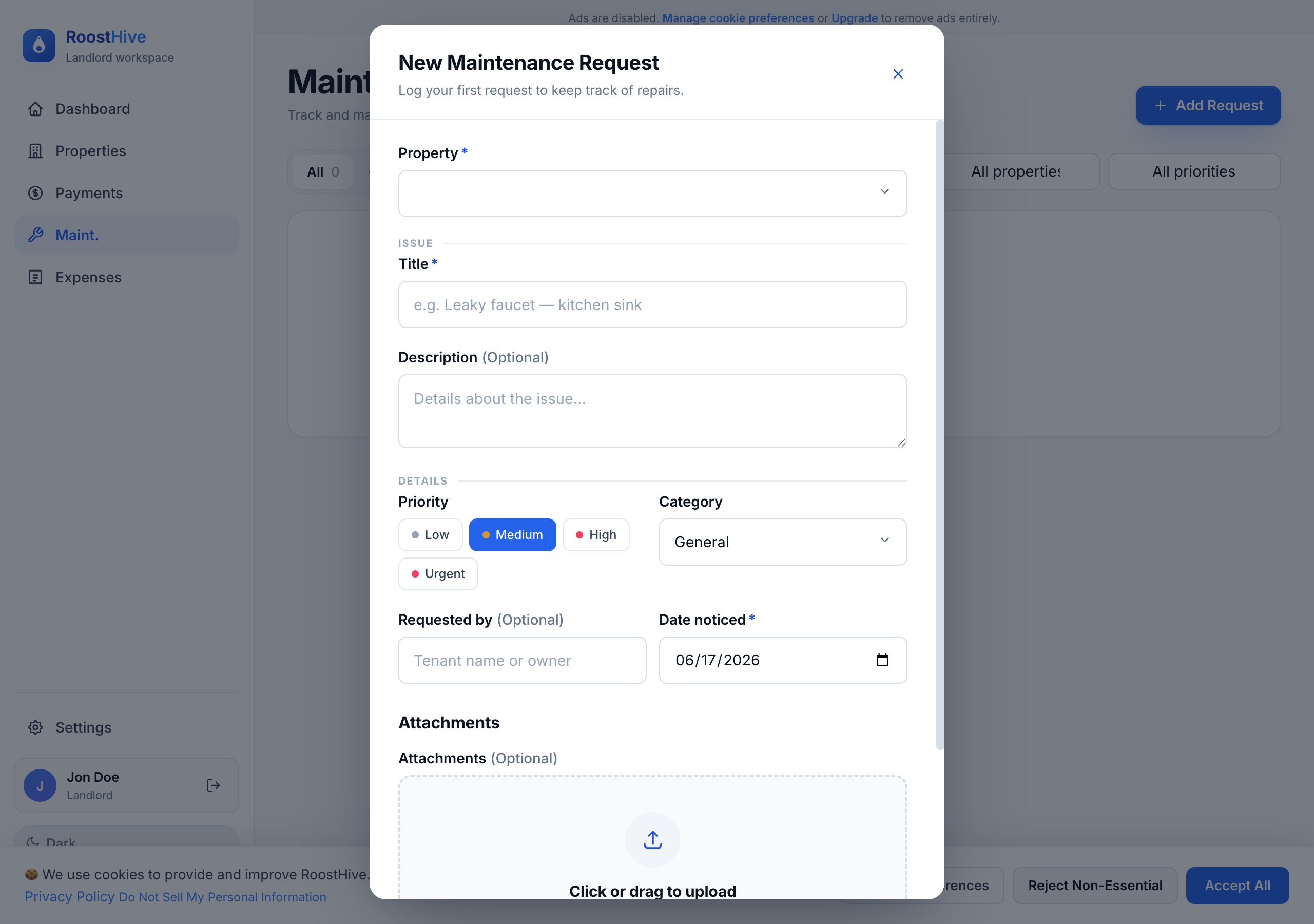
Click Add Request to open the "New Maintenance Request" form. It's split into two simple sections — the issue and the details:
| Field | What to enter |
|---|---|
| Property | Which unit the repair is for. |
| Title | A short summary, e.g. "Leaky faucet — kitchen sink." |
| Description | More detail about the issue. |
| Priority | How urgent it is, so you tackle the right things first. |
| Category | General, Plumbing, Electrical, Appliance, HVAC, Painting, Roofing, Landscaping, or Other. |
| Requested by | Who reported it — a tenant's name or the owner. |
| Date noticed | When the issue was first spotted. |
| Status | Open, In progress, or Done. |
| Completed date | When it was finished (set this when you mark it done). |
Tracking a repair to done
Every request moves through three stages, and you update the status as work progresses:
- Open A new request starts here — it's been reported but not started.
- In progress Move it here once you or a contractor are working on it.
- Done Mark it complete and record the completed date. It drops off your "open" count.
Each request also records when it was created and completed, so you have a clear history of how long repairs took.
Finding requests
Use the search box to find a request by name, or filter the list by status, priority, or property — handy when you want to see, say, every open plumbing job or everything outstanding at one address.
How it connects to the rest of RoostHive
Your most recent requests and the number still open appear in the Dashboard's "Recent maintenance" panel, so repairs stay visible without opening this page. When you pay for a repair, record the cost over in Expenses (Repairs category) to keep the spending tied to that property.