Managing Properties
The Properties page is the heart of RoostHive. It's where you create a record for each rental unit, set its rent, record who's living there, and add a photo. Everything else — payments, maintenance, expenses, and your Dashboard totals — flows from the properties you set up here.
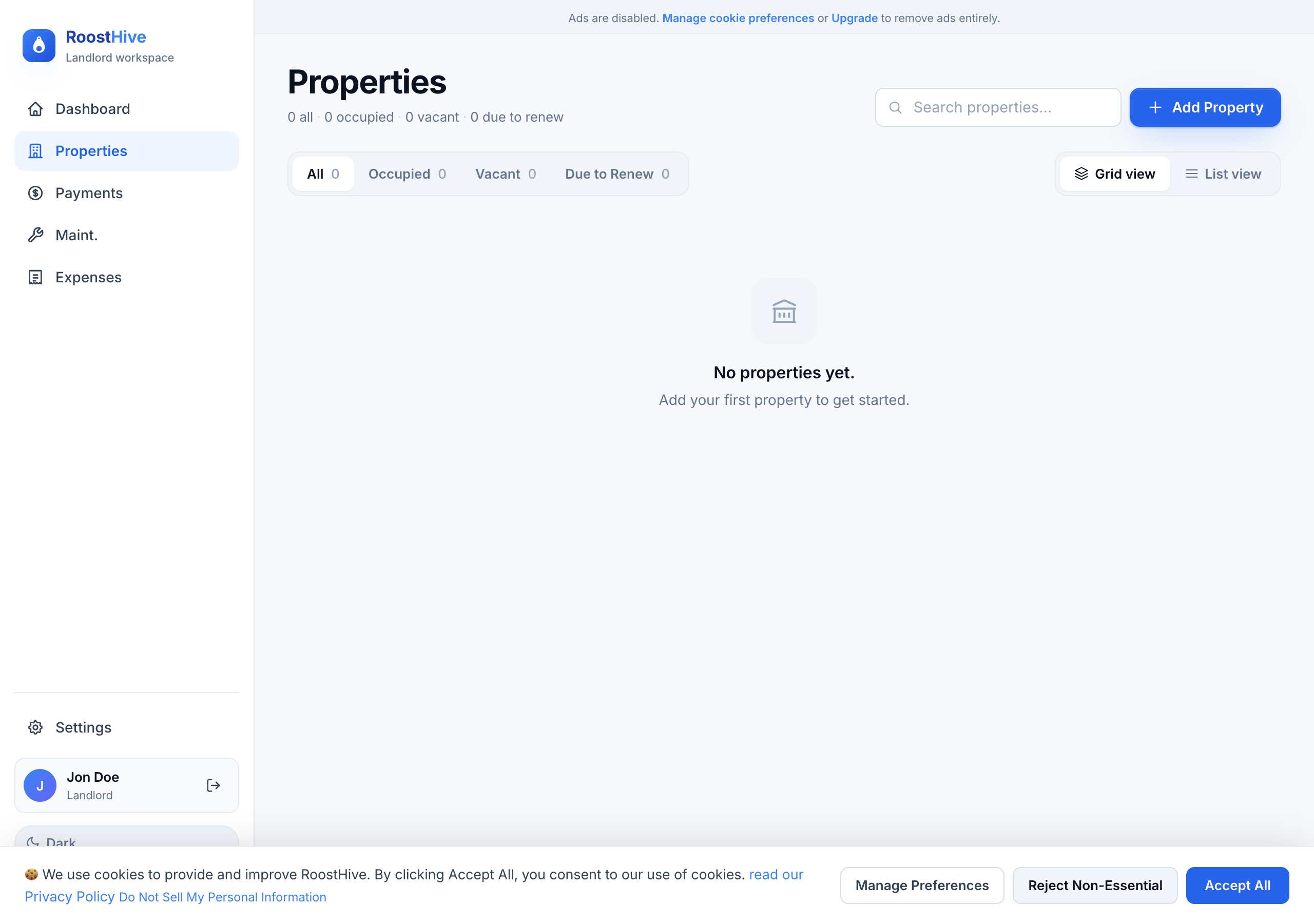
Adding a property
Open Properties from the menu and click the Add Property button at the top right. A form opens where you fill in the details below. Only a name and a few basics are required to get started — you can always come back and fill in the rest.
- Click "Add Property" The "Add Property" window opens.
- Give it a name or nickname Something you'll recognize instantly, like "Maple St. Duplex" or "My rental."
- Enter the address Start typing the street address — RoostHive helps autocomplete it — then add city, state, ZIP, and a unit/apartment number if it applies.
- Set the rent and rental details Enter the monthly rent and choose the rental and building type (see Setting the rent below).
- Record occupancy and lease dates Mark whether it's occupied or vacant and add lease start/end dates if you have a tenant.
- Add a photo and any notes Optional, but a photo makes properties much easier to recognize.
- Save The property appears in your list and on your Dashboard right away.
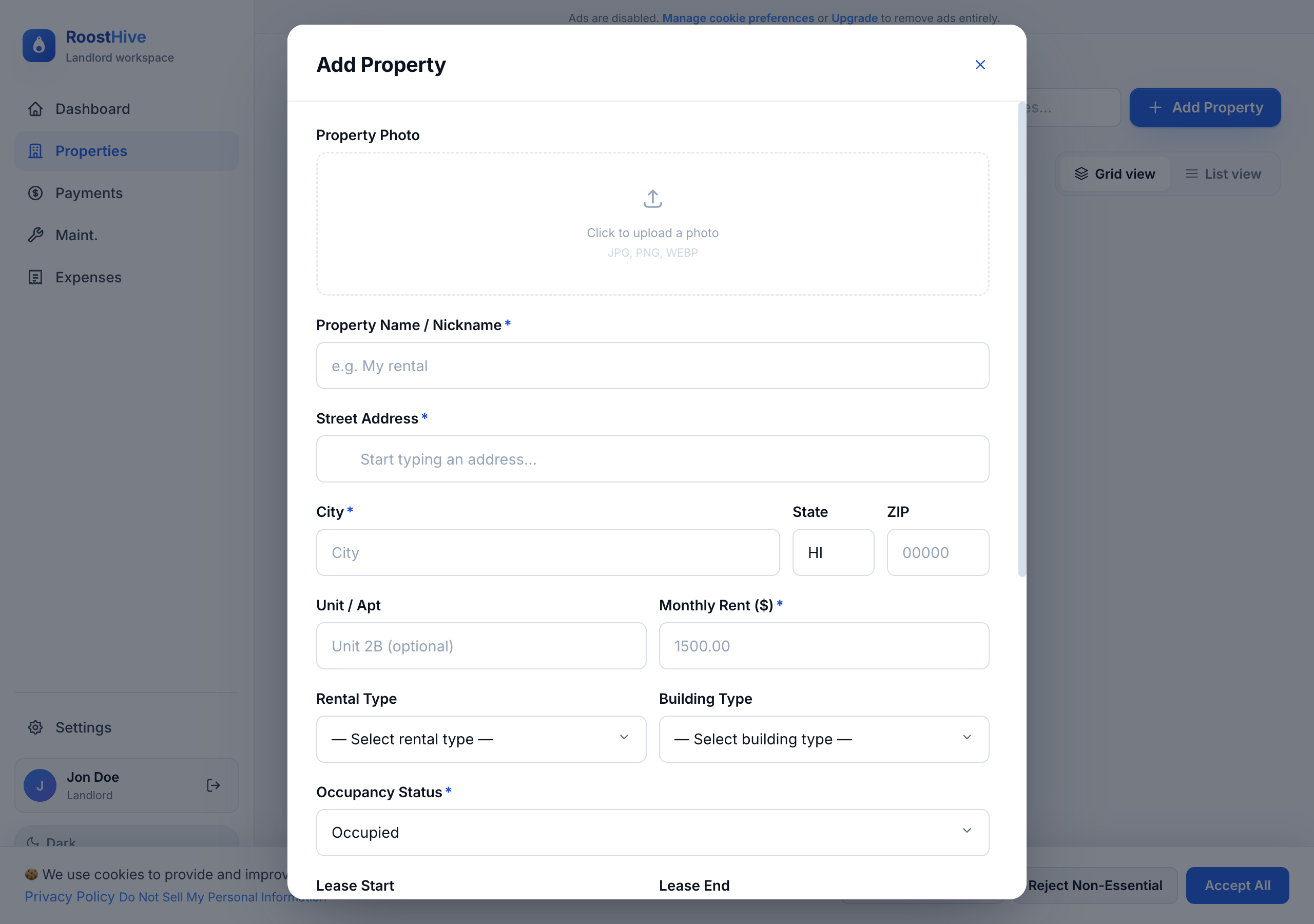
The fields, explained
| Field | What to put |
|---|---|
| Property Name / Nickname | A friendly label, e.g. "My rental." This is what shows on the Dashboard. |
| Street Address | Start typing and pick from the suggestions to keep it tidy. |
| City / State / ZIP | The rest of the address. |
| Unit / Apt | Optional — e.g. "Unit 2B" for a specific unit in a building. |
| Monthly Rent ($) | The agreed monthly rent, e.g. 1500.00. |
| Rental Type | How the unit is rented (e.g. long-term). |
| Building Type | The kind of building (house, condo, apartment, etc.). |
| Occupancy Status | Occupied, Vacant, or Due to Renew. |
| Lease Start / Lease End | The current lease dates. "Lease End" drives the Dashboard's "Due to renew" count. |
| Notes | Anything else worth remembering about this property. |
Setting the rent (pricing)
The Monthly Rent field is where you price the unit. This single number does a lot of work across RoostHive:
- It shows on the Dashboard under "Monthly rent" for that property.
- It's the default amount when you create a rent charge in Payments.
- It feeds your "Received" and "Outstanding" totals each month.
To change the rent — say, at renewal — open the property, edit the Monthly Rent, and save. Going forward, new charges use the updated figure. Past payments you've already recorded stay exactly as they were, so your history remains accurate.
Adding tenants
A tenant in RoostHive is recorded as part of the property they're renting. To add or change who's living in a unit:
- Open the property Click it in your Properties list (or click "Add Property" for a new one).
- Set the status to Occupied This tells RoostHive someone is renting it.
- Enter the tenant and lease dates Record the tenant for the unit and the lease start/end dates.
- Save The tenant now appears next to that property on your Dashboard's "Properties at a glance," and you can send them payment links from Payments.
When a tenant moves out, edit the property, set it to Vacant, and save. When the next tenant moves in, update the details again. Your payment and maintenance history for that property stays intact through tenant changes.
Adding a photo
A photo makes each property instantly recognizable. In the property form:
- Find the photo area You'll see a "Click to upload a photo" box.
- Choose your image Click it and pick a photo from your computer or phone. On a phone you can take one on the spot.
- It uploads automatically The photo saves to secure cloud storage as soon as you select it (more on that below).
- Change it anytime To swap the picture later, open the property and click "Change photo."
Editing and deleting properties
To update any detail — rent, status, tenant, lease dates, photo, or notes — just open the property, make your changes, and save. Use the search box at the top of the Properties page to find a unit quickly when you have a lot of them.
To remove a property, open it and choose delete. RoostHive asks you to confirm — "Delete this property? This cannot be undone." — because deleting is permanent.
How your photos and data are backed up — and how secure it is
You never have to back anything up yourself. The instant you save a property or upload a photo, RoostHive stores it safely in the cloud for you. Here's how it works, in plain terms.
It saves automatically — there's no "save to my device"
When you add or edit a property, the information goes straight to secure servers run on Amazon Web Services (AWS), the same cloud platform behind companies like Netflix and Airbnb. Photos you upload go to a dedicated, private cloud storage area. Nothing important lives only on your phone or laptop, so a lost or broken device never means lost records. Log in somewhere else and everything's right where you left it.
Your files are copied across multiple locations
The moment a photo or document finishes uploading, the storage system automatically makes several copies and spreads them across multiple, physically separate data centers in the same region. If a hard drive fails — or even an entire building goes offline — your file is still safe in the other copies. This happens behind the scenes, every time, with no action from you.
How safe is that? Eleven nines.
The storage RoostHive uses is engineered for 99.999999999% durability. People in the industry call that "eleven nines." Here's what it means without the jargon:
- If you stored 10 million files, you'd expect to lose just one of them — and only about once every 10,000 years.
- Put another way, your photos and records have a 99.999999999% chance of still being there, perfectly intact, year after year.
For comparison, a single external hard drive on your desk fails far, far more often than that. The cloud storage behind RoostHive is in a different league.
| "Nines" | Roughly means |
|---|---|
| 99% (two nines) | You'd lose lots of files regularly — not acceptable for important data. |
| 99.9% (three nines) | Better, but still meaningful loss over time. |
| 99.999999999% (eleven nines) | What RoostHive uses — effectively, your files don't get lost. |
It's encrypted and private to you
Security isn't just about not losing files — it's about keeping them private. RoostHive protects your data two ways:
- Encrypted in transit — while your photo or data travels from your device to the cloud, it's scrambled so no one can snoop on it along the way.
- Encrypted at rest — once stored, the files stay encrypted on disk, unreadable to anyone without the keys.
On top of that, access is tied to your login. Your properties, tenants, photos, and numbers are visible only to you. Other landlords using RoostHive have no way to see your information, and you can't see theirs.